Custom Context Menus
Custom context menus are supported by the CygNet ActiveX controls listed below. The properties to configure the custom menus are located in the OCXProperties for each control. The only items that are different for each of the custom controls are the options to hide a menu item from display if certain conditions are met. All other options for creating the menu options are the same as the standard context menu items.
Currently, the following CygNet ActiveX controls support custom context menus:
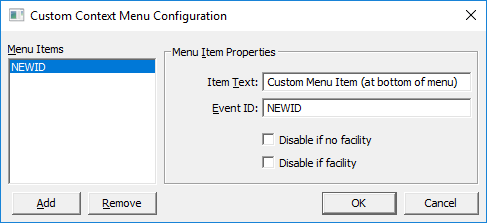
To specify the custom context menu configuration for a control, invoke the Custom Context Menu Configuration dialog box from the OCXProperties field on the ActiveX page of the Property Sheet:
Each custom context menu item has a text description (Item Text), which will appear in the context menu pop-up, and an Event ID that will identify a specific item when handled by the EventOnContextMenu event. Event IDs therefore must be unique. This information is then stored in the ContextMenuXml property on the ActiveX page of the control’s Property Sheet.
When an item is selected in the pop-up menu, the EventOnContextMenu event is fired and can be caught via script. The event will be given at least the Event ID. In the case of the grid-based ActiveX controls (Event Summary, Group Grid, and CAS View controls), it will also be given the row and column for the cell on which the menu was invoked.
ActiveX Control Specific Options
The following visibility check boxes are specific to the individual ActiveX controls.
CAS View Control
The Custom Context Menu Configuration button to configure the context menu options for the CAS View Control is located on the General page of the OCXProperties.
|
|
Menu Item Visibility | |
|---|---|---|
|
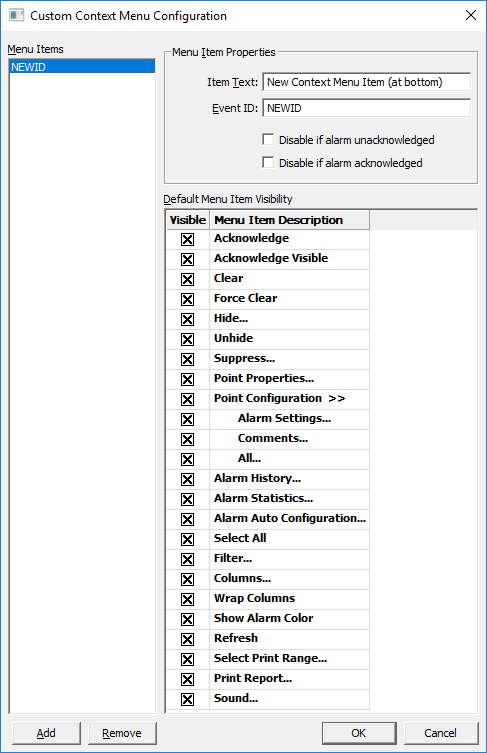
Disable if alarm unacknowledged — Hides the custom menu item if the selected alarm is in unacknowledged state. Disable if alarm acknowledged — Hides the custom menu item if the selected alarm is in an acknowledged state.
Default Menu Item Visibility The default items that will display on the CAS View Control context menu are listed in the grid. Click any check box to hide that menu item from display. The ContextMenuXML ActiveX property includes additional options to hide default menu items. |
Event Summary Control
The Custom Context Menu Configuration button to configure the context menu options for the Event Summary Control is located on the Misc page of the OCXProperties.
|
|
Menu Item Visibility | |
|---|---|---|
|
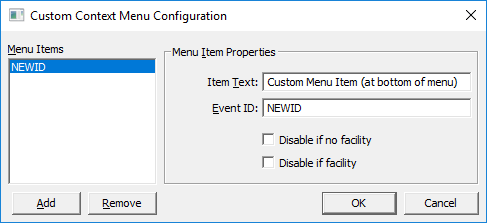
Disable if no facility — Hides the custom menu item if no facility is available. Disable if no point — Hides the custom menu item if no point is available. |
Group Grid Control
The Custom Context Menu Configuration button to configure the context menu options for the Group Grid Control is located on the General page of the OCXProperties.
|
|
Menu Item Visibility | |
|---|---|---|
|
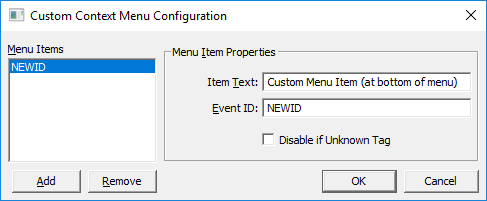
Disable if Unknown Tag — Hides the custom menu item if the selected tag is not valid. |
Group Tree Control
The Custom Context Menu Configuration button to configure the context menu options for the Group Tree Control is located on the Properties page of the OCXProperties.
|
|
Menu Item Visibility | |
|---|---|---|
|
Disable if no facility— Hides the custom context menu item if there is NO facility available for the selected node Disable if facility — Hides the custom context menu item if there IS a facility available for the selected node. |